Configure Storefront settings
Learn how to configure storefront settings in the Phasio manufacturing platform
Phasio provides a sophisticated customer-facing storefront that can be embedded directly into your company’s website or affiliate platforms. This intuitive interface enables customers to request quotes and place orders through a streamlined checkout process. This reduces administrative workload delivering a professional, branded ordering experience.
Configure your storefront
-
Navigate to Organization from the main sidebar, and select General.
-
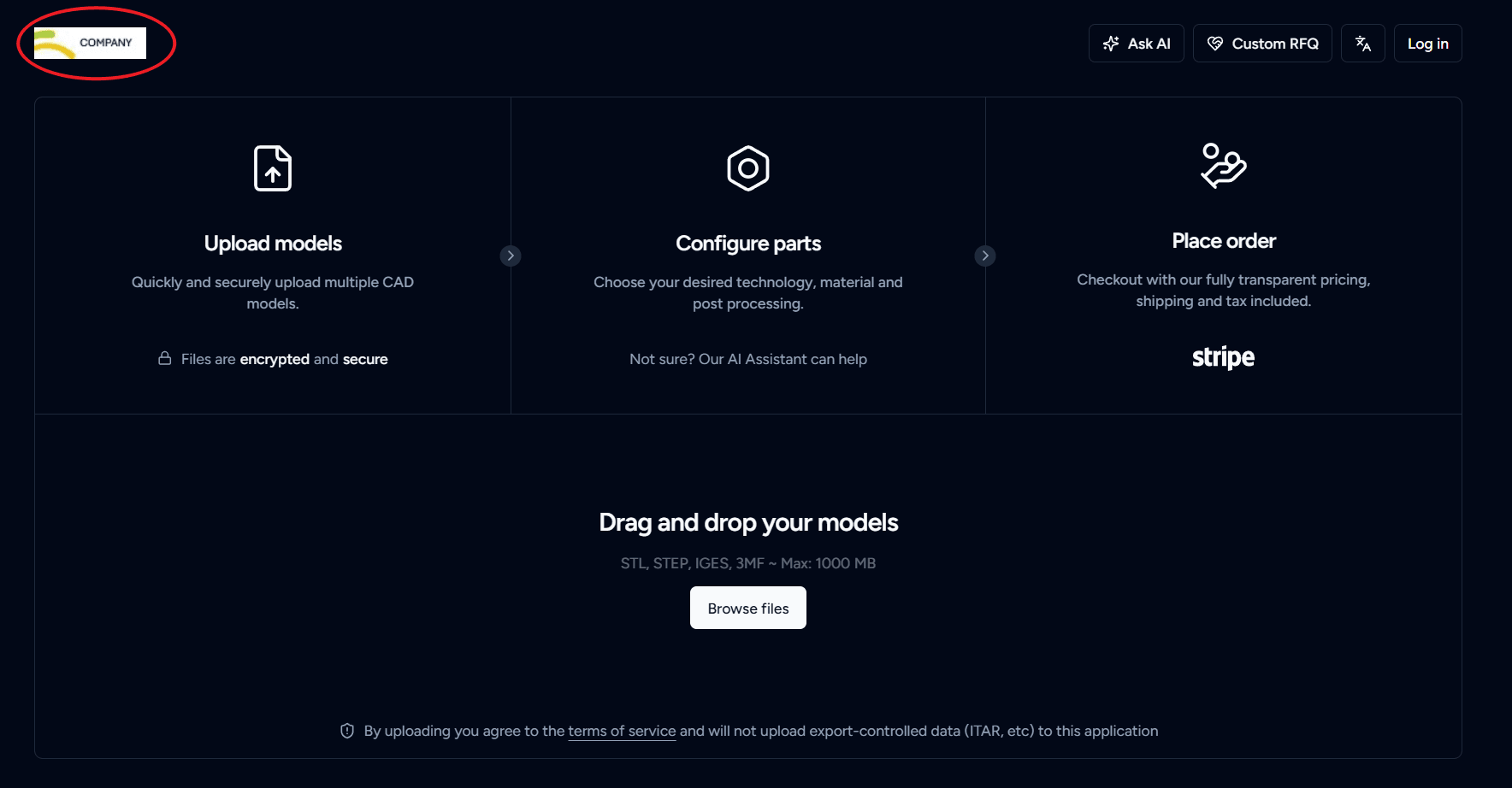
Branding: Upload your company logo to establish a consistent visual identity throughout the customer experience. For optimal display across all device types, use a logo with dimensions of 105 × 30 pixels.
This logo will appear on your Storefront as shown:
-
Country: Select the country where your business operates to ensure correct regional settings are applied.
-
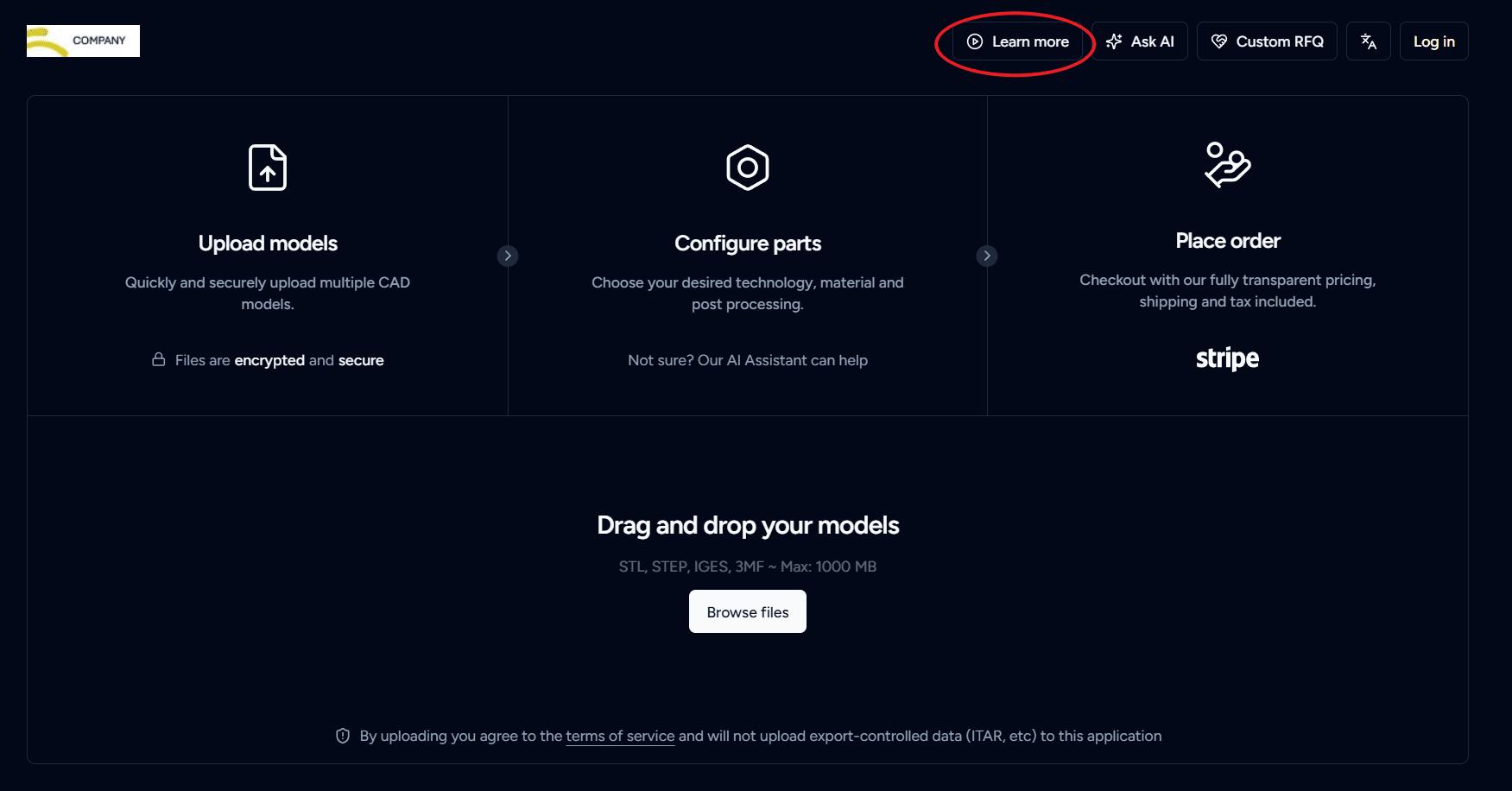
Video Link: Provide an optional promotional video link to display on your Storefront. Use this to showcase your manufacturing capabilities, facility tour, or product demonstrations.
-
Order Notes: Set the default text that will appear on all quotes and orders. Use this to standardize important information, terms, or special instructions.
-
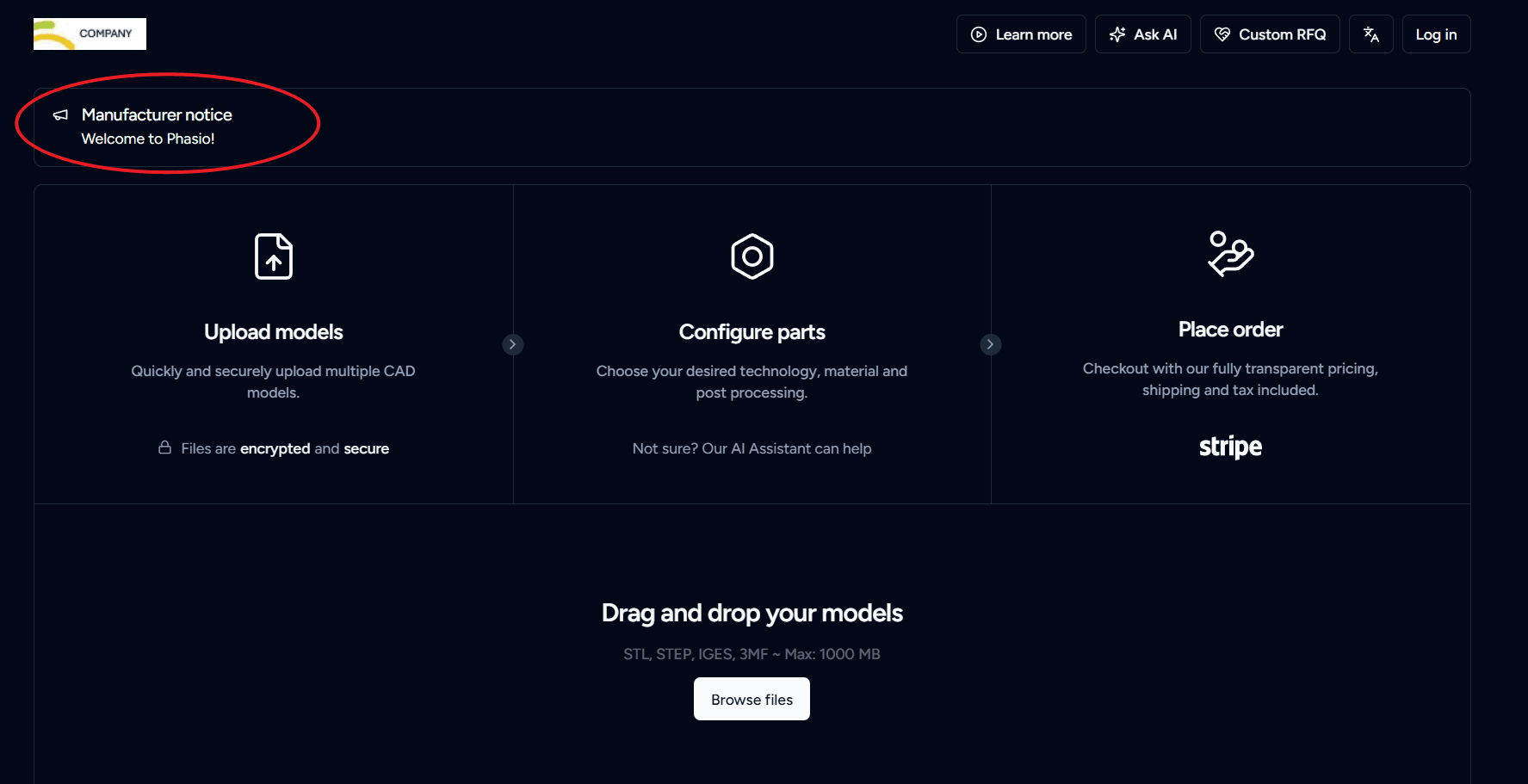
Landing Page Message: Enter a custom landing page message that will greet customers when they first access your Storefront. This is a great place to highlight your value proposition and showcase your manufacturing expertise.
-
Terms of Service: Include a direct link to your Terms of Service to ensure proper legal disclosure. This allows customers to review and agree to your business terms before placing an order.
-
Storefront Appearance: Set the default theme for your storefront. Customers can still switch themes using the theme picker. The available options are:
- Customer preference — Customers see the theme based on their browser settings.
- Light mode — Your storefront defaults to light mode.
- Dark mode — Your storefront defaults to dark mode.
-
Click Save to apply and update all configurations to your Storefront.
Last updated on